
Clipboard text issues on iOS
Clipboard text issues on iOS are a common source of unpredictable formatting after copy-paste. Text copied on iPhone can look correct in the source app, then break once pasted elsewhere. Wrapping fails, truncation triggers earlier than expected, spacing shifts between apps, and the same content behaves differently across mobile surfaces. These failures are rarely caused by wording. They are caused by invisible Unicode structure preserved by the iOS clipboard.
iOS prioritizes fidelity when transferring text between apps. Instead of aggressively simplifying content, the clipboard often preserves rich representations and invisible formatting. That design choice improves visual consistency, but it also allows non-standard whitespace and invisible control characters to survive copy-paste and affect downstream rendering.
iOS clipboard behavior is mapped, the most common artifact families are identified (NBSP, zero-width marks, hidden formatting residue), and their impact on mobile rendering is connected to real app behavior. For the platform hub, see Platform-specific text issues.

What it is
Clipboard text issues on iOS refer to behavioral failures caused by invisible Unicode characters preserved during copy-paste. The visible text remains unchanged, but its underlying structure alters how mobile apps wrap, truncate, and parse it. These characters are valid Unicode, which is why iOS stores and transfers them even when users cannot see them.
The most common invisible artifacts include non-breaking spaces that remove line-break opportunities, zero-width characters that split or join tokens invisibly, and hidden formatting residue introduced by rendering layers and attributed text representations.
Why it happens
On iOS, copy-paste is not a plain text operation. The clipboard often carries multiple representations of the same content, including attributed strings designed to preserve appearance. Destination apps choose what to consume. This choice can preserve invisible structure that was harmless in the source context but disruptive in the destination.
AI-generated text is particularly exposed because it passes through chat interfaces, rendering layers, and clipboard packaging before reaching mobile apps. Each step increases the chance that invisible Unicode survives into publishing surfaces.
Rich clipboard representations
iOS clipboard data often includes styling and spacing metadata alongside plain text. Apps that favor fidelity may keep non-standard whitespace and invisible separators intact. This explains why the same copied text behaves differently across Notes, Messages, Instagram, LinkedIn, and CMS editors.
Narrow layouts and early truncation
Mobile layouts are narrow and truncation triggers early. A single NBSP can remove a critical break point and force a phrase to remain unbreakable. Zero-width boundaries can alter tokenization just enough to change layout height and truncation behavior.
Common symptoms
iOS clipboard issues are usually discovered through behavior, not visible corruption. The most common symptoms include text that refuses to wrap naturally, captions or bios that truncate earlier than expected, spacing that changes after minor edits, and content that behaves inconsistently across apps.
Why the symptom is amplified on iPhone
iPhone screen width is limited, and text engines recalculate layout frequently. Hidden structure has little room to hide. A character that is harmless on desktop can immediately trigger visible failures on mobile.
How to detect it
Detecting invisible Unicode on iOS is difficult because mobile editors hide low-level structure and find-and-replace cannot target invisible characters reliably. Detection relies on behavioral signals and controlled testing.
Behavior-based signals
If text behaves normally after retyping but breaks after paste, invisible Unicode is likely present. The signal is especially strong when content originates from AI chat interfaces, Docs, PDFs, or web pages.
Why inspection is impractical on mobile
Inspecting Unicode code points on iOS requires external tools or desktop workflows. That friction makes manual diagnosis unrealistic for everyday publishing. Normalization is therefore more effective than detection.
How to fix it safely
Safe cleanup requires controlled normalization. Not all invisible Unicode is unwanted. ZWJ is required for emoji sequences, and some marks are legitimate in multilingual contexts. A safe workflow removes unintended artifacts that cause breakage while preserving required characters for meaning and rendering.
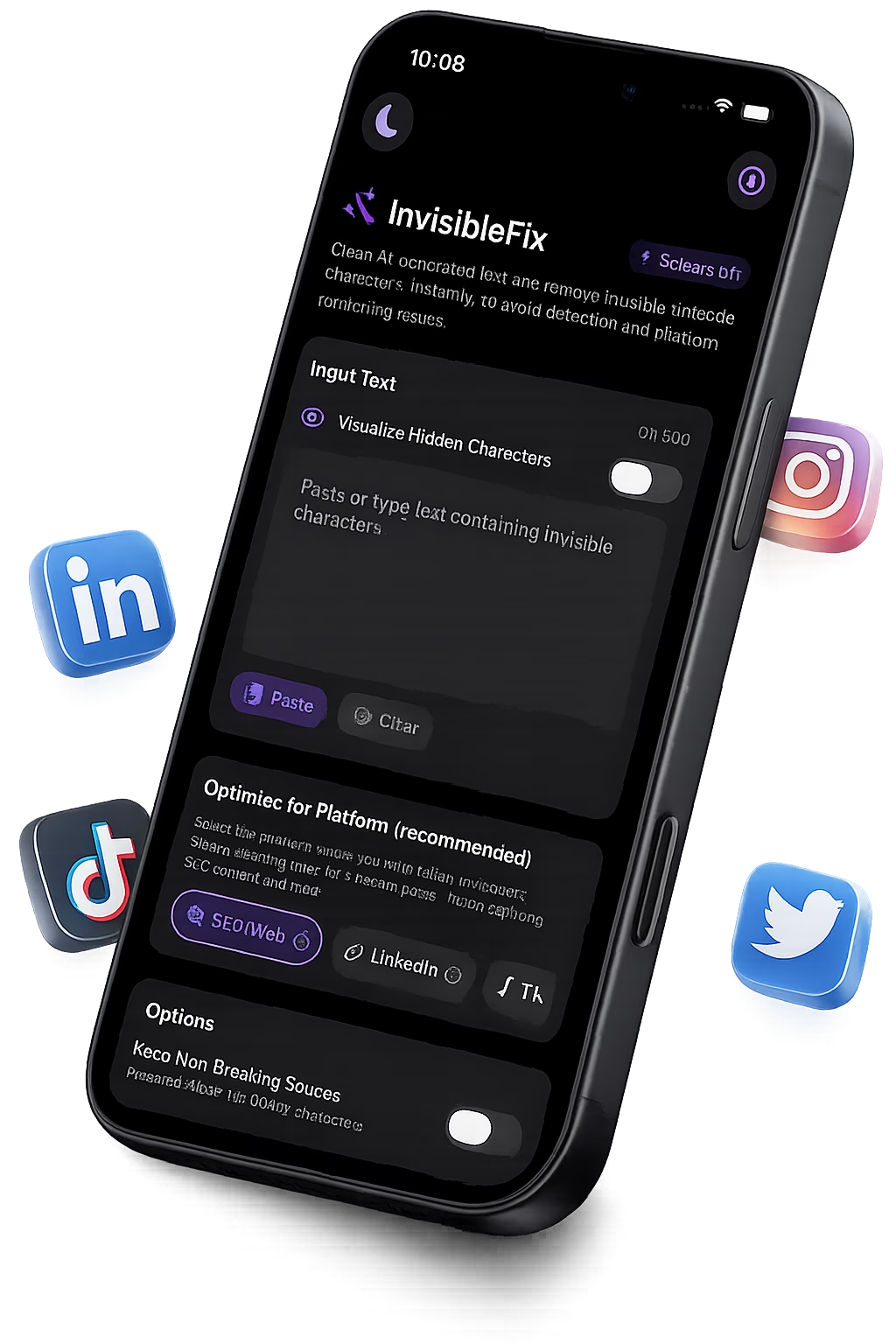
For iOS workflows, predictable behavior usually matters more than preserving invisible layout rules. This is why normalization is best applied after editing and before pasting into mobile apps. The related article Why ChatGPT text behaves differently on iPhone details the mobile transport layer. For immediate cleanup, text can be normalized locally at app.invisiblefix.app.
Once invisible Unicode is normalized, clipboard text behaves predictably across iOS apps. Wrapping stabilizes, truncation occurs where expected, and copy-paste becomes reliable.

 Invisible Fix

